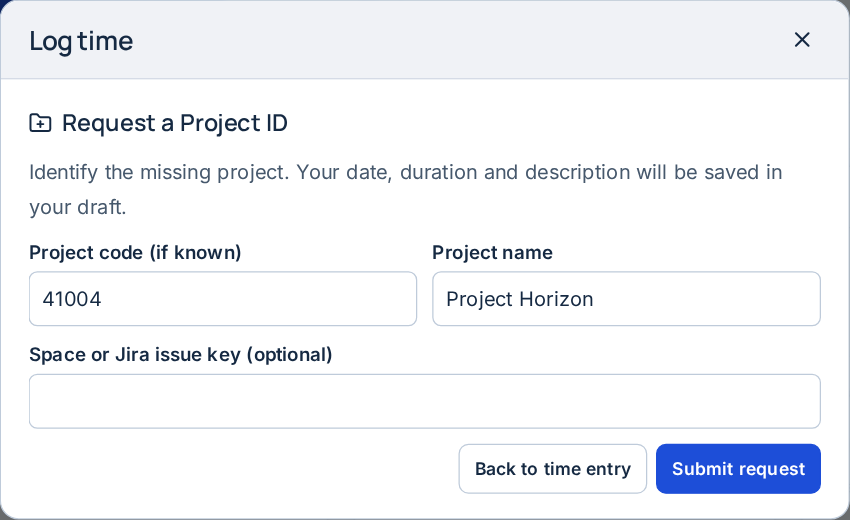
Request a Project ID and resume an entry
When a project is missing, send its details to the catalogue administrator and keep the time in a personal draft.
Where to go My Timesheet → Log time → Project ID
How to do it
- Enter the work details you already know. Search the project picker and select Can’t find your project? Request a Project ID. For a project with no destination, use Request a time-tracking destination.
- Enter at least the code, name or a Jira reference and submit. If a matching request exists, select Let me know when it’s available to save your draft.
- When the administrator links an active project with a destination, open My time entry drafts in My Timesheet. Select Resume time entry, review the values and save the entry.
Example
You have prepared 30m for sample project 24011 and only know the issue DEMO-25. Give that key in the request and confirm the 30m after the project becomes available.
Fields and options
- Project code (if known)
- Enter your organization’s project code, up to 40 characters. If you do not know it, identify the project by name or Jira reference.
- Project name
- Enter a name the administrator can recognize, up to 100 characters. Check any information copied from your search.
- Space or Jira issue key (optional)
- If known, enter a key such as DEMO or DEMO-25. When opened from an issue, Jira source already shows its reference.
- Submit request
- Creates a catalogue request and saves your work details as a draft. Time is counted once you save the resumed entry.
- Let me know when it’s available
- If the same project was already requested, this attaches your own draft to that request. Each person resumes their own values.
- My time entry drafts
- Waiting for a Project ID means the request is pending. Project ID available lets you open the form again using Resume time entry.
No matching field.
How to check
The request first appears among your drafts. After saving, check that there is one entry on the expected day and issue.