Project IDs
Set the code that groups a project’s hours and the Jira issue that receives entries from the timer or the main time-entry form. An organization manager or Jira administrator can set up the project.
Where to go Organization → Entry de tempo (time entry) → Project IDs
How to do it
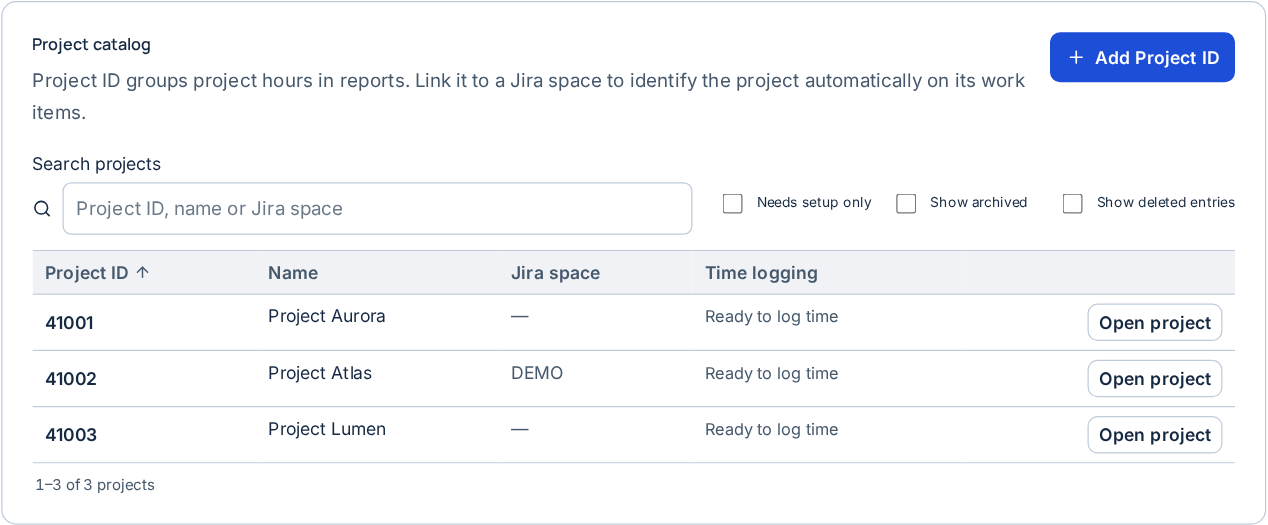
- To change a project, search for its code, select “Open project”, then “Edit project”. To create one, select “Add Project ID” and enter its code and name.
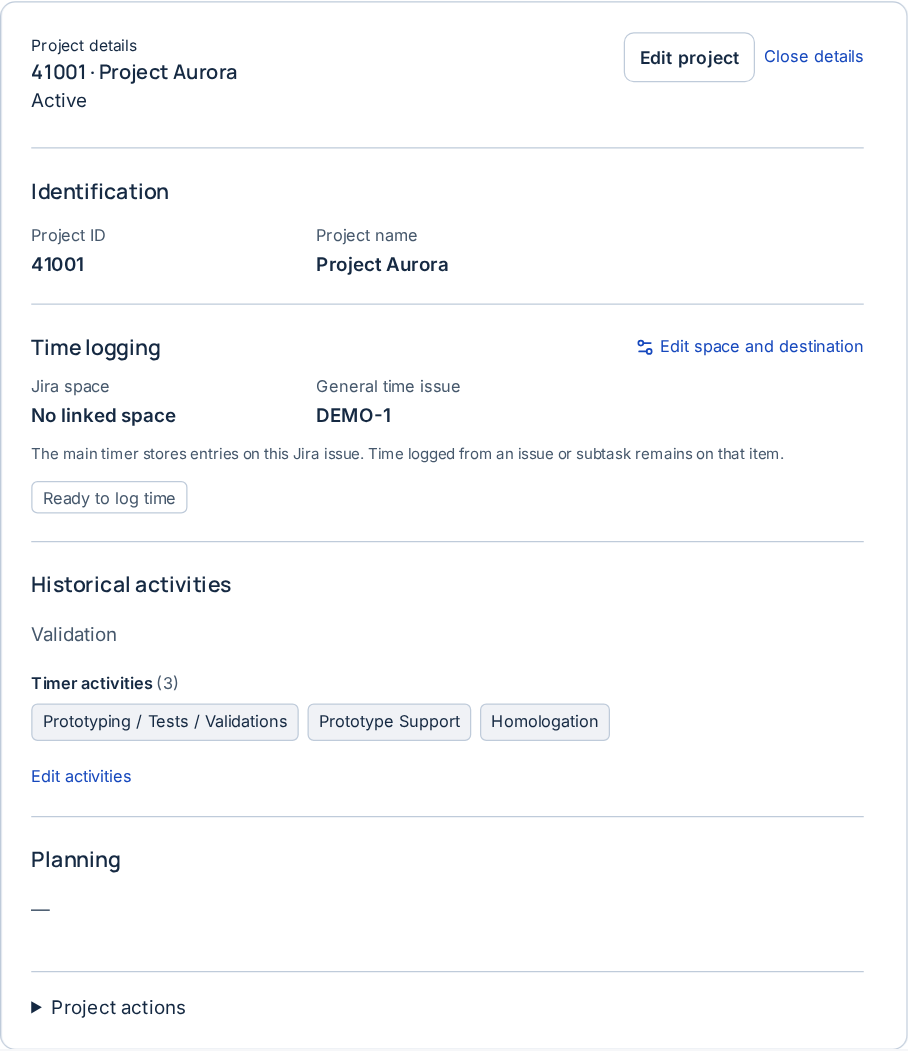
- In “Edit space and destination”, select the space and general time issue. If several projects share a space, you can choose “Use an issue without linking a space”. Select “Apply destination”.
- To make activities available on an existing project, open its details and select “Edit project”. In the historical activities section choose its activity group, finish editing and select “Save configuration”.
- If someone requested the project, open “Pending requests”. Link the request to an existing project that is ready for use, or create one from the request. Once it is available, the requester can resume and save their entry in My time.
Example
The space “41020 – Project Atlas” suggests code 41020 and name “Project Atlas”. Link issue DEMO-10 and the “Engineering” group. Someone opening 41020 in the time-entry form will see that group’s activities.
Fields and options
Find a project
- Search projects
- Search all pages by code, name, alternative code, or space key/name. Results are sorted by ascending Project ID, ten per page.
- Needs setup only
- Show active projects that need a destination or a correction. The “Time logging” column tells you what each row needs.
- Show archived
- Include archived projects to inspect their details or reactivate them.
- Show deleted entries
- Include removed entries. Restore brings an entry back as archived. Use Reactivate to make it available again.
Create or edit the project
- Enter manually
- Enter the code and name yourself. After adding the project to the draft, set the destination and save the configuration.
- PDP project from a space
- Select the existing space. If its name starts with a numeric code, ScopeTime suggests the code and name. Check both before adding.
- Project ID
- Required unique code, up to 40 characters. If it already exists, use “Open existing project”.
- Name
- Required project name shown beside the code in the picker and catalogue, up to 100 characters. Choose a unique name your team recognises.
- Status
- Choose Active for ongoing work or Closed when the project has finished. The list shows the Status column when there are non-active states.
- Jira space
- Search by name or key and select the space. Issues in that space can identify the project automatically.
- General time issue
- Search for an issue in the space by key or title. The main timer uses this destination. Logging from inside a Jira issue or subtask records time on that issue.
- General time issue type
- When preparing a general time issue, select an available type if a new issue is needed. Creating it in the space takes effect in Jira immediately. Then apply the destination and save the configuration.
- This project’s Jira issue
- If the project has no dedicated space, find and select the existing issue that should receive entries from the main form or timer.
- Activity group
- Select the group for this Project ID. Its active activities become available when logging time. “Edit activities” opens the shared group.
Set the project plan
- Set planned hours
- Enable to compare planned and logged time over a period. Leave it off if the project has no estimate.
- Planned hours
- Enter the project’s planned total, from 0 to 1,000,000 hours, with up to two decimal places.
- Plan start
- First day covered by the estimate. Supply both dates when setting planned hours.
- Plan end
- Last day of the period, on or after the start date. The period can cover up to 366 days including both dates.
Find codes and set up internal time
- Find Project IDs in Jira issues
- First link and save the Project ID issue field under Jira fields. Search accessible issues, review the candidates and add them to the draft. Set a destination for each new project.
- Diversos Jira issue
- In advanced time destinations, choose where internal work entered outside a Jira issue should be recorded. Apply the destination and save the configuration.
Handle Project ID requests
- Use an existing project
- In Pending requests, pick a saved, active and open project with a time destination. “Link project” resolves the request immediately.
- Create Project ID
- Open a new project using the request details. Check the code, name and destination, then save the configuration to make it available.
- Email me when a new project is requested
- Administrator preference under Pending requests → Email notification. Enter the notification issue and select “Save preference”. The form indicates if another administrator currently receives these alerts.
- Jira issue for notifications
- Enter an existing issue key, such as DEMO-20, to provide context for new-request notices. This field belongs to the requests queue.
No matching field.
How to check
After saving, search for the code, open its details and verify “Ready to log time”, its issue and its activities. Closing the details takes you back to the same page and row.