Log time on a Jira issue or subtask
Use the issue panel when the work belongs to a specific Jira issue. ScopeTime already knows which issue is open.
Where to go Jira → issue or subtask → ScopeTime
How to do it
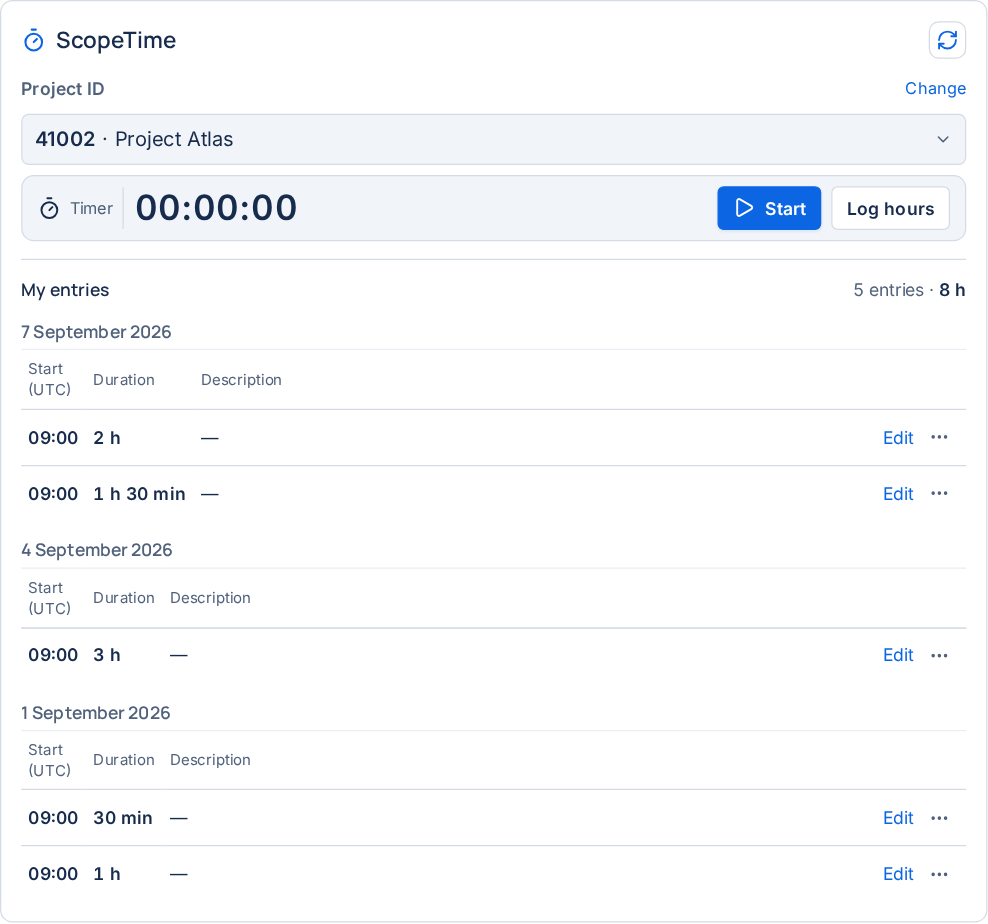
- Open the Jira issue or subtask and expand ScopeTime. Check the Project ID. If a selection is needed, choose the correct project or Miscellaneous and an activity.
- To measure work now, use Start and then Stop and save. For completed work, use Log hours and confirm the work date, start and duration.
- Review My entries in the panel. If the total says “visible” and more pages are available, use Load more entries.
Example
On sample subtask DEMO-25, select Log hours and save 30m. The confirmation and entry list refer to that subtask.
Fields and options
- Project ID
- Expand the value to see whether it came from the Jira space or issue. If values conflict or the project is archived, choose an active project.
- Change
- Overrides the classification for this entry. Use task value restores the suggested choice when a valid value is available.
- Activity type
- An activity is required for Miscellaneous. In a manual project entry, you can specify an optional activity from the project’s group.
- Timer running on another task
- Read the issue key before stopping. The session belongs to the issue where it started.
- Log hours
- Opens the form for the current issue. Check the key in the dialog header and save the time.
- My entries
- Your entries are grouped by date. Edit changes the selected entry. Delete entry is in the three-dot menu when permitted by Jira.
- Refresh fields and timer
- Use the circular arrow to read the issue fields and timer status again after changing something in Jira.
No matching field.
How to check
Check the saved duration in the confirmation and the new line for that day in My entries.