People and schedules
Use a profile to record where someone works and how many hours they usually work each day of the week. Reports use the profile to group logged time and the schedule to calculate capacity.
Where to go Organization → People and calendars → People and schedules
How to do it
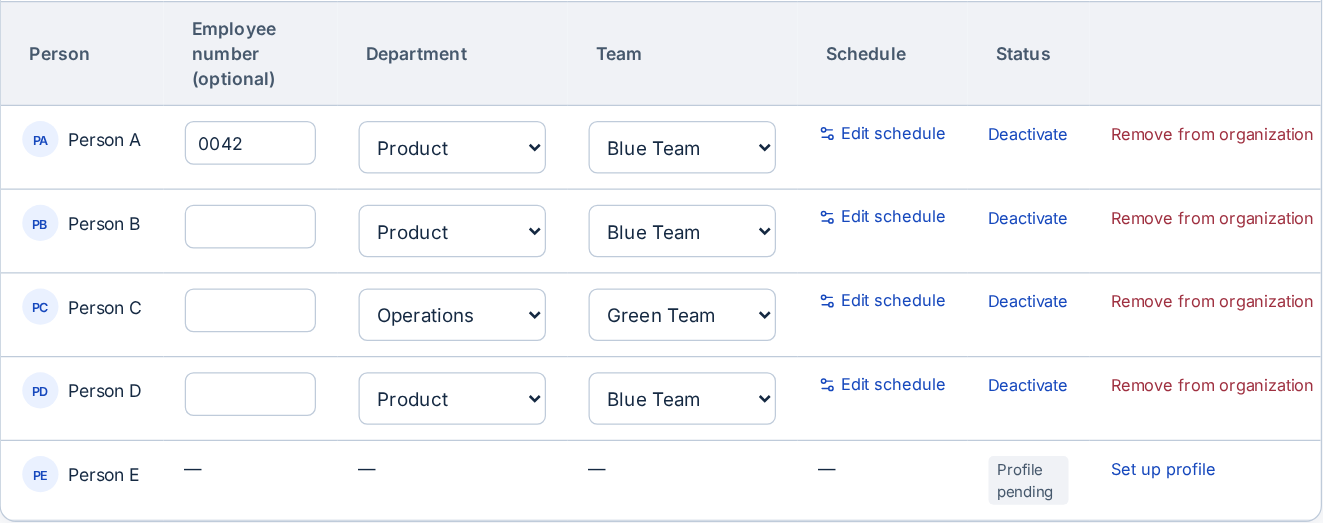
- Sign in as an organization manager or Jira administrator. Enter the name in Filter people. If you see Profile pending, select Set up profile.
- Choose the department first and then the team. Enter the employee number if your organization uses one.
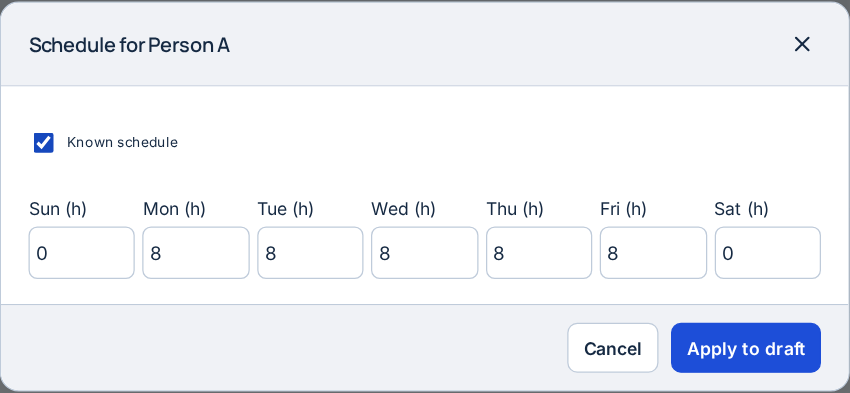
- Open Configure schedule or Edit schedule, select Known schedule and check all seven days, including Saturday and Sunday.
- Select Apply to draft in the schedule window. On the Organization page, select Save configuration and wait for confirmation.
Example
Inês works in the Testing team in Engineering. She works 8 h Monday to Thursday and 4 h on Friday. Enter 0 h on Saturday and Sunday. Her weekly reference is 36 h before holidays or leave.
Fields and options
Find a person
- Filter people
- Search by the name shown in Jira or by the employee number saved in the profile. Clear the search to return to the list.
- Refresh Jira directory
- Reload the active personal accounts Jira lets you see. You can still edit available profiles if the directory is incomplete.
- Search Jira
- Appears when the directory is unavailable or you enter an address containing @. Enter at least two characters. If Jira denies access, ask your administrator to check Browse users and groups.
Person profile
- Person
- Identifies the Jira account by its display name. A row marked Profile pending has no ScopeTime profile yet. Select Set up profile to prepare it.
- Employee number (optional)
- Enter the internal identifier as it appears in the leave plan, including leading zeros. Each number belongs to one profile. You can leave it blank.
- Department
- Choose the person's organizational unit, such as Engineering. Changing the department clears the selected team so you can choose one from the new department.
- Team
- Choose a team from the selected department. Create a missing team under Teams. You may leave the team unconfigured and complete the profile later.
Weekly hours
- Schedule
- Configure schedule opens the week for someone who has no schedule yet. Edit schedule lets you review existing values.
- Known schedule
- Select this when you know the normal working week. The form starts with 8 h Monday to Friday and 0 h at weekends. Review the values. With the box cleared, logged hours remain visible and capacity is unknown.
- Sun (h), Mon (h), Tue (h), Wed (h), Thu (h), Fri (h), Sat (h)
- Enter 0 to 24 hours for each day. Use 0 on rest days and 7.5 for seven and a half hours. If the person works a Saturday shift, enter its hours too.
Profile status
- Status
- Deactivate takes the person out of the active population used for capacity. Reactivate includes them again. Manage app permissions under Access.
- Remove from organization
- Removes the person from the regular list. Their Jira account, authorship, worklogs, associations and calendar are preserved.
- Show deleted entries
- Include removed profiles in the list. To recover one, select Restore, correct any highlighted fields and save the configuration.
No matching field.
How to check
Reopen the profile to check the team and all seven values. In Analysis → Reports → Capacity, filter by person and choose a week without holidays or leave to check the total.