Calendar and leave
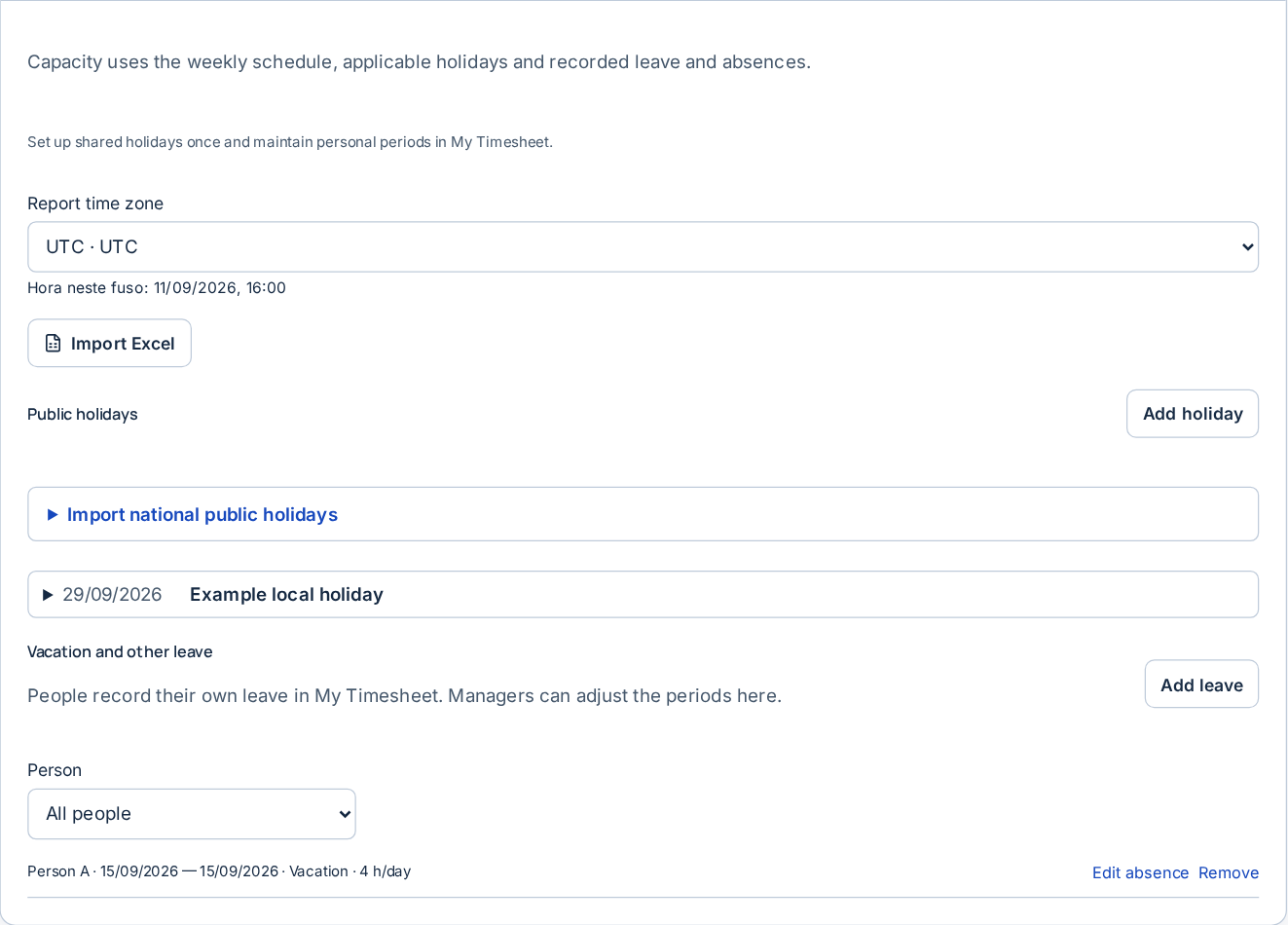
Set the time zone, shared public holidays and each person's leave. ScopeTime starts from weekly schedules to calculate the hours available on a given day. Vacation and sick leave have their own categories, separate from time worked on projects.
Where to go Organization → People and calendars → Calendar and leave
How to do it
- As an organization manager or Jira administrator, start with Report time zone. To check expected hours, also review the weekly schedule under People and schedules.
- For a local holiday, select Add holiday, enter a date and name and choose who it applies to. For national holidays, open Import national public holidays, select a country and year and use Preview holidays before applying the list.
- To enter vacation, sick leave or another absence for someone, select Add leave. Choose the person and dates. People can also manage their own periods under My Timesheet → Holidays and absences.
- If you have an annual Excel leave plan, choose Import Excel, select the .xlsx file and review the mapping between employees and Jira accounts. Open View changes and check for conflicts before applying.
- Select Apply to draft in the form or Apply holidays to draft for national holidays. Back on the Organization page, select Save configuration to make the change available.
Example
Someone is scheduled for 8 h on a Tuesday. A 2 h absence leaves 6 h available. An applicable public holiday on the same day reduces availability to 0 h and prevents deducting the absence twice. Anyone excluded from the holiday keeps their schedule, unless they have their own leave entry.
Fields and options
Report time zone
- Report time zone
- Choose the region used to display dates and times and to assign a worklog's start to the correct day. For mainland Portugal choose the Europe/Lisbon time zone. The local time shown below the field helps you check the choice.
Add and review holidays
- Holiday date
- Required. Enter the holiday date as day/month/year. For a municipal holiday, enter the date observed at the workplace.
- Holiday name
- Required, up to 100 characters. Use a recognizable name, such as “Municipal holiday”.
- Applies to
- Choose All people for a shared holiday or Selected people for a specific location or group. For Selected people, tick at least one name. The same setting is available in the national preview.
- Exceptions: excluded people
- Tick anyone who should keep their normal schedule on this date. An exclusion takes priority even if the person is on the selected list. Clear exclusions removes these exceptions.
- Source
- Expand a saved holiday to see whether it was entered manually, imported from a national list or read from Excel. The same detail shows who is included and who is excluded.
- Country
- In the national holiday importer, select the country whose calendar you want to review. Use Add holiday for regional, municipal or company-specific days.
- Year
- Enter the year and select Preview holidays. Review dates and coverage before applying. Repeating the import preserves edits to holidays already imported.
- Saved public holiday year
- This filter appears when holidays are stored for more than one year. Choose a year or select All years for the full list.
- Person
- In Vacation and other leave, filter the saved periods. All people shows the whole list again. Filtering by a person also preselects them when you open Add leave.
Record time away
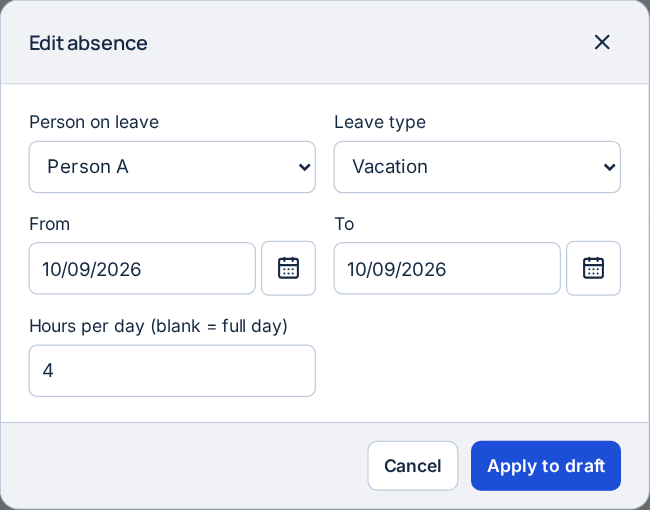
- Person on leave
- Required. Select the person whose availability will change. If they are missing from the new leave list, complete and activate their profile under People and schedules.
- Leave type
- Choose Vacation, Sick leave or Other absence. The calendar and person analysis display the time in the corresponding category.
- From
- First day of leave, inclusive. For a single day, enter the same date in both fields.
- To
- Last day of leave, inclusive. Use the same date as From or a later one. If a leave entry already covers those dates for the person, edit the existing entry or choose a non-overlapping period.
- Hours per day (blank = full day)
- Leave blank for full-day leave. For partial leave enter the hours absent on each day, for example 2. The number must be above 0 and at most 24. The deduction is capped at that day's scheduled hours.
Import the annual leave file
- Excel file (.xlsx)
- Select an annual leave export with a “PlanoFerias” sheet, up to 16 MiB. The sheet must identify the year, company, workplace, employee numbers and names, January to December dates and a legend. FF marks vacation, BB sick leave and FE a public holiday.
- Employee in Excel
- Shows the number and name from the workbook. Compare them with the Jira person. Correct wrong or duplicate numbers in the workbook and reopen it.
- Jira person
- The account comes from People and schedules. The same employee number matches automatically. A name suggestion requires confirmation. Use Choose a person when names look alike.
- Matching
- Confirm the correct match or use Skip to leave the employee out of this import. Reset lets you revisit a skipped row. A newly linked number can be added to the profile when you save.
- People to import
- Compare the number of matched or confirmed rows with the total rows. People without a linked account are left out of the import.
- Include holidays for the selected people
- Appears when the workbook contains holidays. Keep it selected to include those dates for the people covered by the import, or clear it to process leave only.
- Planned vacation days (FP), excluded from import
- FP marks vacation that is still planned. The count is for reference. Only confirmed vacation creates new vacation entries.
- View changes
- Review additions, removals, updates and new links. When importing the same plan again, compare the proposed periods before applying.
- Conflicts to review
- Open the list to identify the person and date. Check the profile, existing manual entry or Excel row, and correct the source identified in the message.
No matching field.
How to check
Save configuration and open Analysis → Reports → Capacity for the person and date range. Check the expected hours on the affected date. In v0.17.14, holidays and leave on Saturdays and Sundays deduct no hours, even when a weekend shift is scheduled.