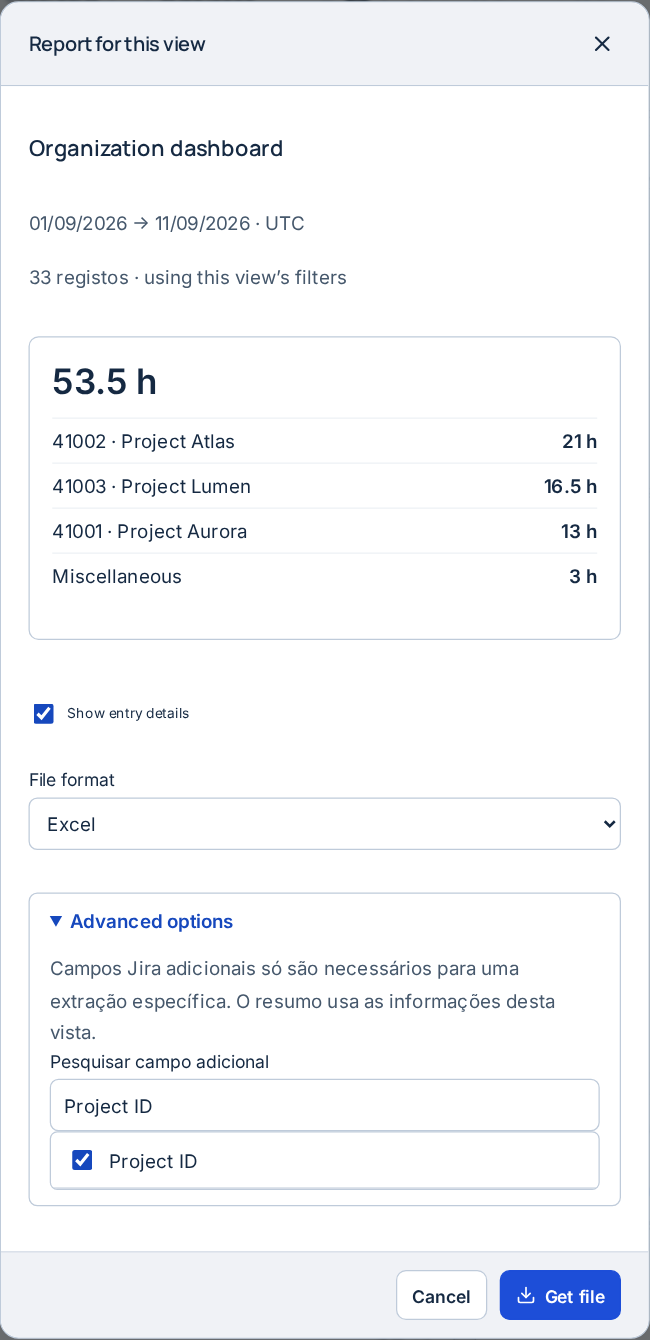
Report for this view
Download the current view with its active dates and filters. The Reports catalogue also offers ready-made reports directly as PDF or Excel.
Where to go In a view that supports export → Report for this view
How to do it
- Apply the dates and filters in the view. Open Report for this view and check the period, time zone, filters and result count.
- For a shareable summary, leave entry details unchecked. For individual rows, enable Show entry details and choose any required options.
- Select the format and click Get file. Open the download and check the title, dates and total.
Example
For a team meeting, create a PDF with the weekly total. To reconcile individual entries, open the same view, enable details and choose Excel.
Fields and options
- Show entry details
- Includes the detail offered by the view. Depending on the screen, this can be worklog rows, people, teams or alerts.
- File format
- Choose PDF for reading, or Excel for working with the figures. Advanced options also offers CSV and HTML.
- Advanced options
- Opens additional formats and, for detailed worklog exports, the list of Jira fields available to include.
- Pesquisar campo adicional
- With details enabled in a worklog view, search by field name or ID, then tick the fields you need. This search box can retain its Portuguese label in English.
- Get file
- Generates the report with your current choices. If the query or permissions have changed, refresh the view and check the selection before retrying.
No matching field.
How to check
File and screen totals should refer to the same people, dates and filters. Check all three before comparing reports.